
You can add item and replacement instructions through the Instacart app or website.
Item instructions
You can add item instructions from your cart, on the checkout page, or even after you place your order (as long as the shopper hasn't started working on it yet):
- From your cart: Click Instructions (website) or tap Add a note (app) on the item.
- From the checkout page: Select Review to review items and add instructions.
- After you order: Visit the Order page to review your items and add any instructions.
Your item instructions will carry over to future orders. If your item preferences change, review your notes when ordering the same items in the future.
Preference instructions
When you add certain items to your cart, a preference window will appear. This window lets you customize your preferences so that your shopper can pick those items more accurately for you. Some examples:
- Set the ripeness level for avocados and bananas
- Set the slice thickness for deli meats
You can either choose your preference right away or dismiss it. Once chosen, these preferences are saved to your account for future orders, and you’ll be prompted to review them every 30 days. Note that updating a preference removes any previous shopper note for that item, but you can still add a new item note at any time.
Shoppers will see your preference clearly while shopping to help meet your request. You’ll receive an automated update if your preference can or can’t be met.
To set a preference:
- Select an eligible item (such as bananas or avocados).
- Tap Edit preference under Item instructions.
- Choose your option (for example: not ripe, almost ripe, ripe).
- Select Confirm.
Replacement instructions
When an item is unavailable, you have three replacement options:
- Best match: Your shopper chooses the best possible replacement. They’ll also use replacements you’ve approved on past orders. If you don't choose a preference, Replace with best match is selected for you. You'll see this in your cart and can change it anytime before checkout.
- Specific item: You can search the catalog or choose up to 3 replacement options from a list of suggestions.
- Refund: Refund: If you prefer not to replace an item, get a refund. Your shopper may still suggest a replacement — if they do, you'll get a notification to approve or decline it.
Your replacement instructions will carry over to future orders.
Replace items in-app:
- In your cart, tap Add Instructions on the item.
- Tap Choose replacement.
- Tap Replace with specific item, Replace with best match, or Refund this item.
Replace items on the website:
- In your cart, select Choose replacement on the item.
- Select Replace with specific item, Replace with Best match, or Refund this item.
We'll refund or charge you for the difference in price for replacement items.
If you've turned your order notifications on, look for alerts when your shopper replaces or refunds an item.
Checking another store for your out-of-stock items
We know how important it is to get every item you ordered. We may check another store for any refunded out-of-stock items. If the out-of-stock items are at another store and a shopper is available, we’ll let you know we’re working on a new order. This only applies to delivery orders and has some restrictions:
- No alcohol items
- No Rx items
- No gift orders
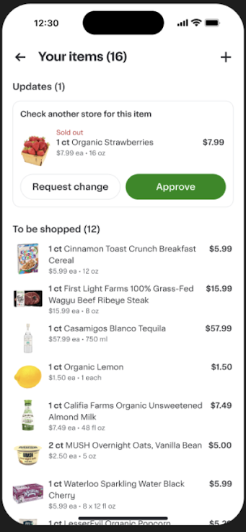
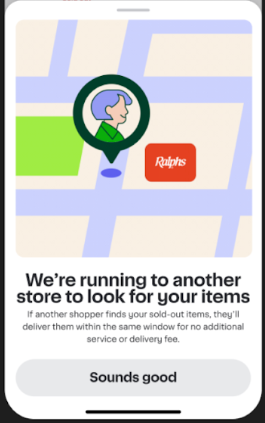
You can’t reschedule a new order, but you can add items or cancel on the order page. You can cancel a new order without being charged a cancellation fee. Delivery instructions from the original order carry over. You’ll also get order notifications if you’ve enabled them.
The new order creates another authorization hold for the out-of-stock items only. (Adding items to the new order might create additional authorization holds.) The new order includes a portion of the service fee and tip from the original order.
The second shopper will visit a different location of the same retailer. While item prices are based on the original order, please note that the same coupons, discounts, and promotions (e.g., BOGO, order minimum) may not apply.